


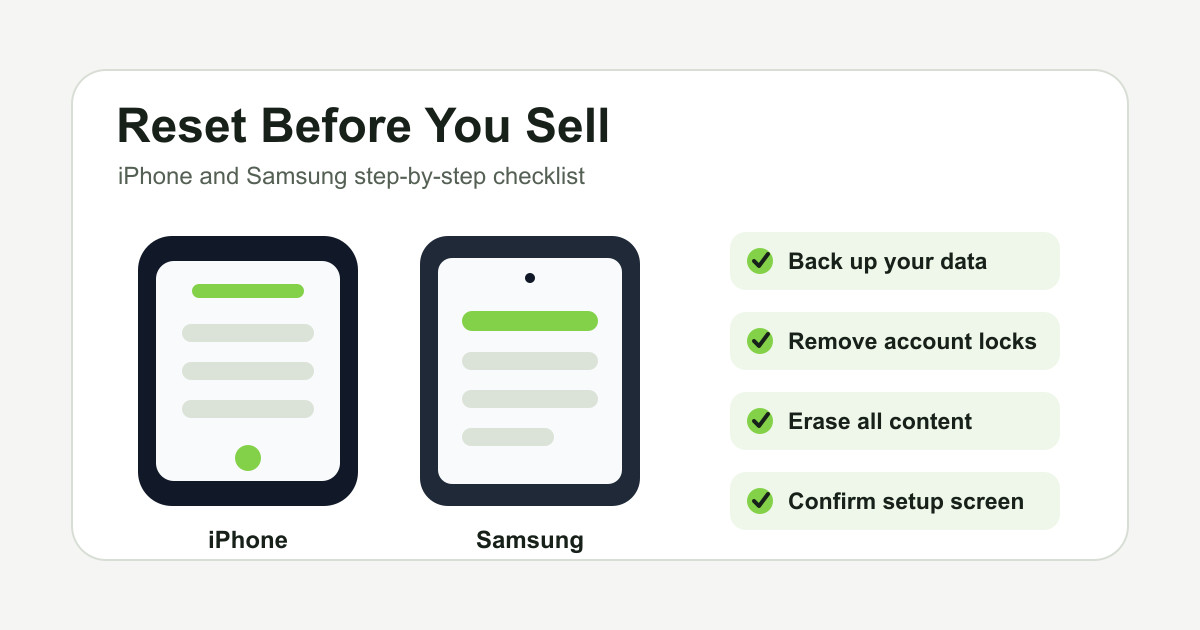
If you are selling, recycling or trading in a phone, wiping it properly matters. A normal delete is not enough. Logging out of a few apps is not enough. You need to back up what you want to keep, remove account locks, erase the device, and check that the next owner can set it up without seeing your Apple, Google or Samsung account.
This step-by-step guide covers both iPhone and Samsung Galaxy phones. The menus can vary slightly by iOS, One UI version and network, but the main paths are the same.
Before You Start#
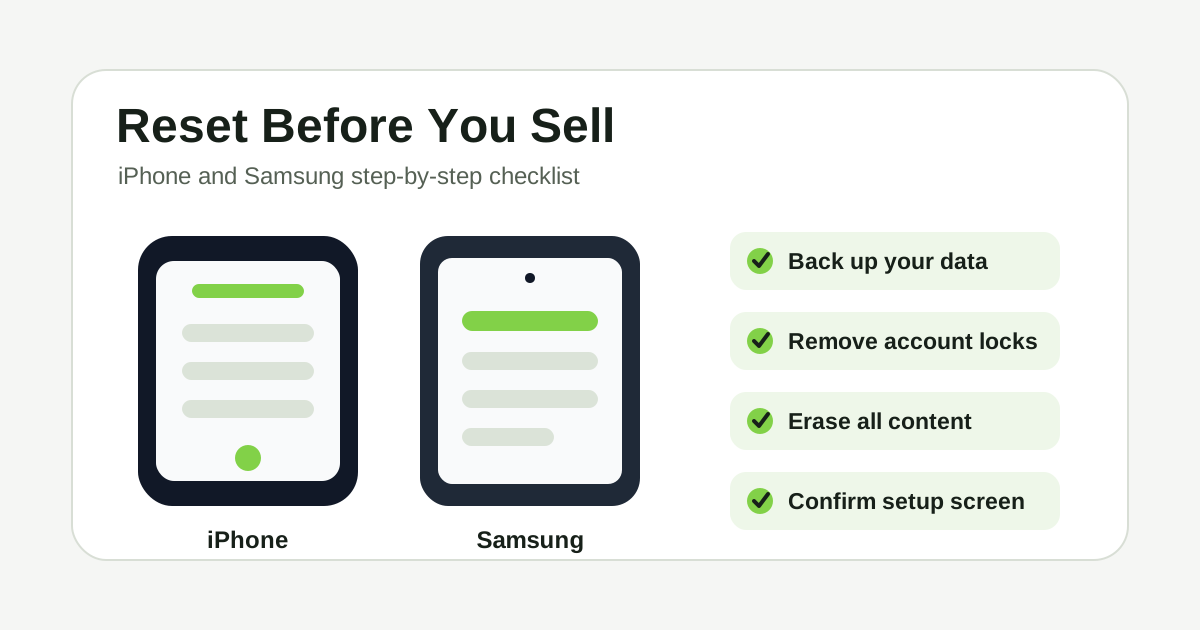
Do these checks before resetting either device:
- Back up photos, WhatsApp, contacts, notes and files you want to keep.
- Make sure you know your Apple Account, Google account or Samsung account password.
- Remove any banking cards from wallet apps if you want to be extra careful.
- Transfer authenticator apps before wiping the phone.
- Remove your physical SIM card.
- Delete or transfer eSIMs.
- Photograph the phone's condition and IMEI for your own record.
The goal is simple: after the reset, the phone should start like a new device and should not ask the next person for your old account details.
iPhone: Step-by-Step Reset Before Selling#
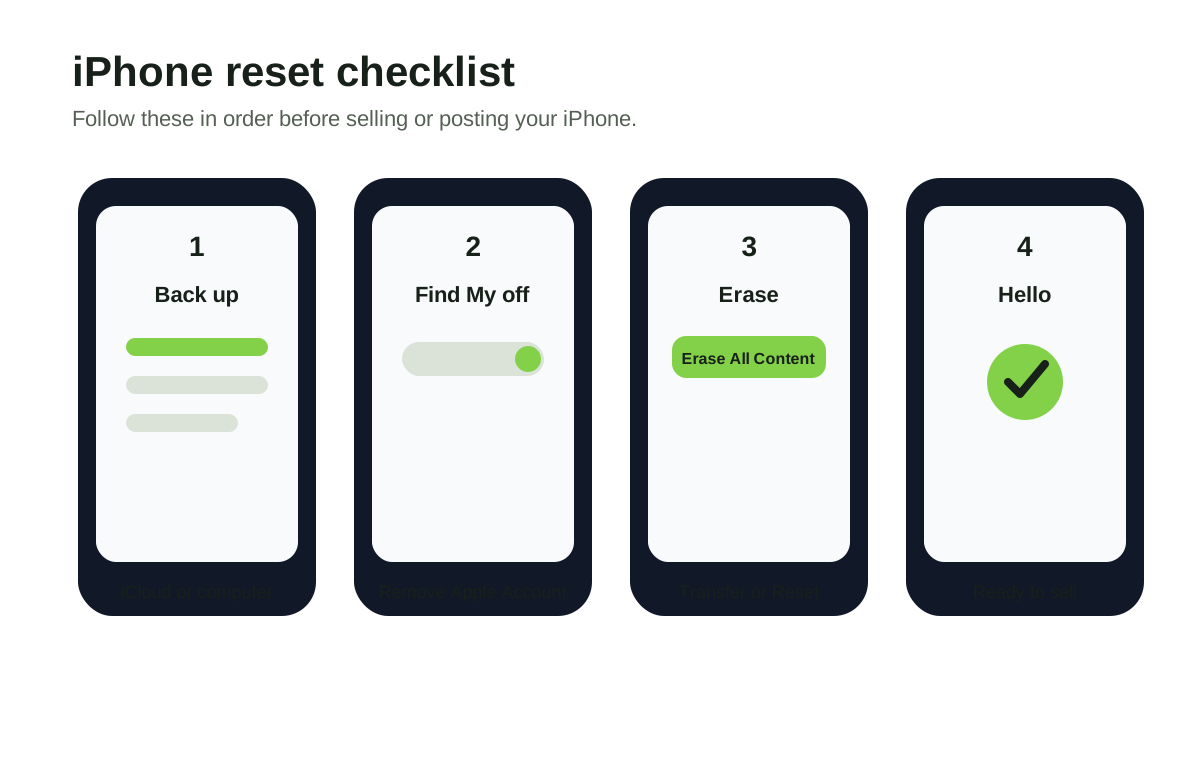
Apple's current reset path is Settings > General > Transfer or Reset iPhone > Erase All Content and Settings. Before you do that, deal with backup and Find My.
Step 1: Back Up Your iPhone#
Use iCloud or a computer backup.
For iCloud, go to Settings > your name > iCloud > iCloud Backup > Back Up Now. Stay on Wi-Fi until it finishes. If you are moving to a new iPhone, also check that Photos, Messages and WhatsApp are backed up the way you expect.
If you prefer a computer, connect the iPhone to a Mac or PC and make an encrypted backup. Encrypted backups are useful because they can preserve more sensitive data such as saved passwords and Health data.
Step 2: Turn Off Find My and Remove Your Apple Account#
This is the step many sellers miss.
Go to Settings > your name > Find My > Find My iPhone and turn it off. You may need your Apple Account password. Then go back to your Apple Account page and sign out if prompted during the erase process.
If Find My stays on, Activation Lock can remain. That means the buyer or recycler may not be able to activate the phone without your Apple Account.
Step 3: Erase All Content and Settings#
Go to:
Settings > General > Transfer or Reset iPhone > Erase All Content and Settings
Follow the prompts. The iPhone may ask for your passcode, Screen Time passcode or Apple Account password. It may also ask what to do with eSIMs. If you are selling the phone, remove or transfer the eSIM unless your network has told you otherwise.
Step 4: Confirm the Hello Screen#
After the reset, the iPhone should restart to the Hello setup screen. Do not set it up again.
If it asks for your old Apple Account during setup, the phone is still activation locked. Remove the device from your Apple Account before selling it.
Samsung Galaxy: Step-by-Step Reset Before Selling#
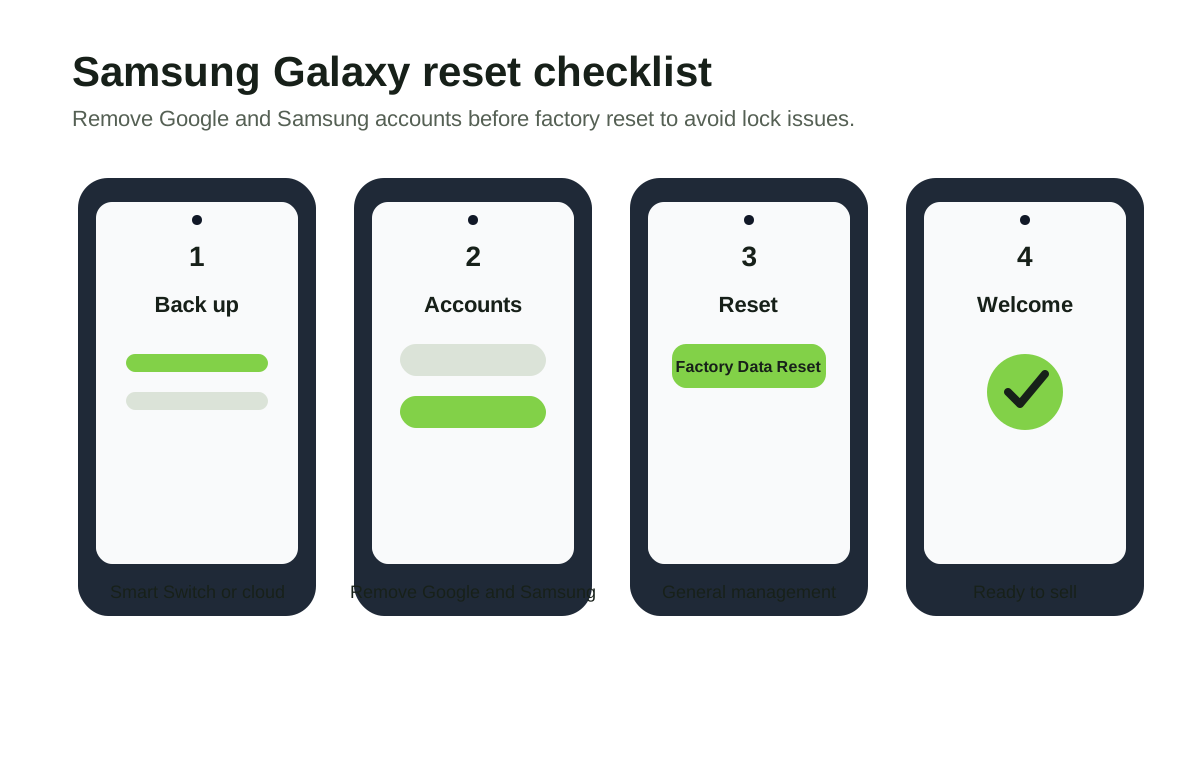
Samsung's current reset path is usually Settings > General management > Reset > Factory data reset. On some devices the wording may vary slightly, but the important part is removing Google and Samsung accounts first.
Step 1: Back Up Your Samsung#
Use Samsung Smart Switch, Samsung Cloud, Google backup or a computer backup. Check photos, WhatsApp, contacts and files before continuing.
For many Samsung users, the easiest path is:
Settings > Accounts and backup
From there, back up to Samsung Cloud or Google, or use Smart Switch to move data to a new phone.
Step 2: Remove Google and Samsung Accounts#
This is the Samsung equivalent of avoiding account lock problems.
Go to:
Settings > Accounts and backup > Manage accounts
Remove your Google account and Samsung account. You may need your password or screen lock. Removing these accounts before reset helps avoid Factory Reset Protection issues where the phone asks for the previous owner's account after wiping.
Step 3: Factory Data Reset#
Go to:
Settings > General management > Reset > Factory data reset
Review the list, then tap Reset and follow the prompts. The phone may ask for your PIN, pattern, password or account confirmation.
If there is a microSD card, remove it before sending the phone. A reset usually wipes the phone, not necessarily every removable card.
Step 4: Confirm the Welcome Screen#
After the reset, the Samsung should restart to the welcome setup screen. Do not sign in again.
If it asks for your previous Google or Samsung account during setup, it is not ready to sell. Resolve that before sending the device.
Final Checks for Both iPhone and Samsung#
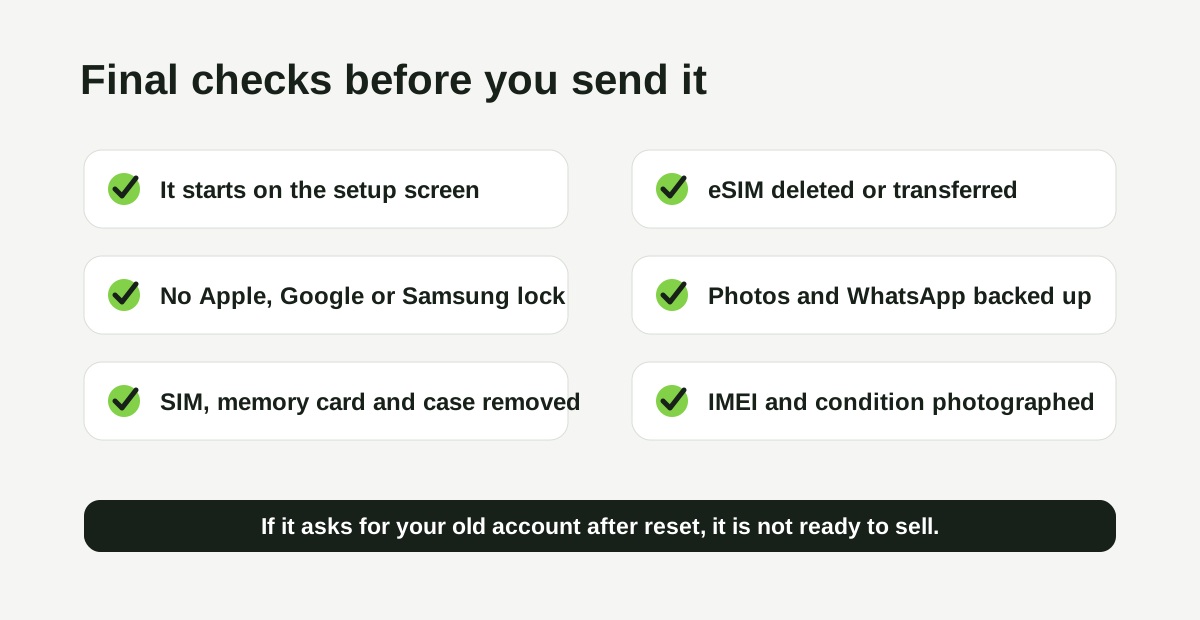
Before posting or handing over the phone, check:
- It starts on the setup or welcome screen.
- It does not show your name, email, Apple Account, Google account or Samsung account.
- Find My iPhone is off for iPhone.
- Google and Samsung accounts are removed for Samsung.
- Your physical SIM card is removed.
- Any eSIM has been deleted or transferred.
- Any memory card is removed.
- Cases, screen protectors and accessories you want to keep are removed.
- The phone is charged enough for inspection.
If you are sending the phone to TechLoop, pack it securely and keep your proof of postage.
What Not to Do#
Do not just delete photos manually. Deleted files and signed-in accounts can still leave data or locks behind.
Do not sell an iPhone that still says iPhone Locked to Owner.
Do not sell a Samsung that asks for your old Google account after reset.
Do not leave a SIM, eSIM or memory card on the device.
Do not assume a broken screen means you can skip the reset. If the phone still works enough to erase, erase it. If you cannot erase it because the screen is unusable, tell the buyer or recycler before sending it.
Why This Matters for Your Quote#
A properly reset phone is easier and faster to process. If a device arrives still locked to an Apple, Google or Samsung account, the buyer cannot fully test, refurbish or resell it. That can delay payment or mean the phone has to be returned.
TechLoop performs its own data wipe as part of processing, but you should still reset the phone before sending it. That protects your data and helps the trade-in move smoothly.
Official Reset References#
Apple's official reset route is covered in its guide to preparing an iPhone or iPad for sale or trade-in: Apple Support.
Samsung's official factory reset route is covered in its Galaxy reset guide: Samsung UK Support.
Use those pages if your menu labels differ slightly from the steps above.
The Bottom Line#
To fully reset your phone before selling it, follow the right order:
- Back up.
- Remove account locks.
- Erase all content.
- Confirm the setup screen.
- Remove SIM, eSIM and memory cards.
Once that is done, your iPhone or Samsung is ready to sell, recycle or trade in safely.